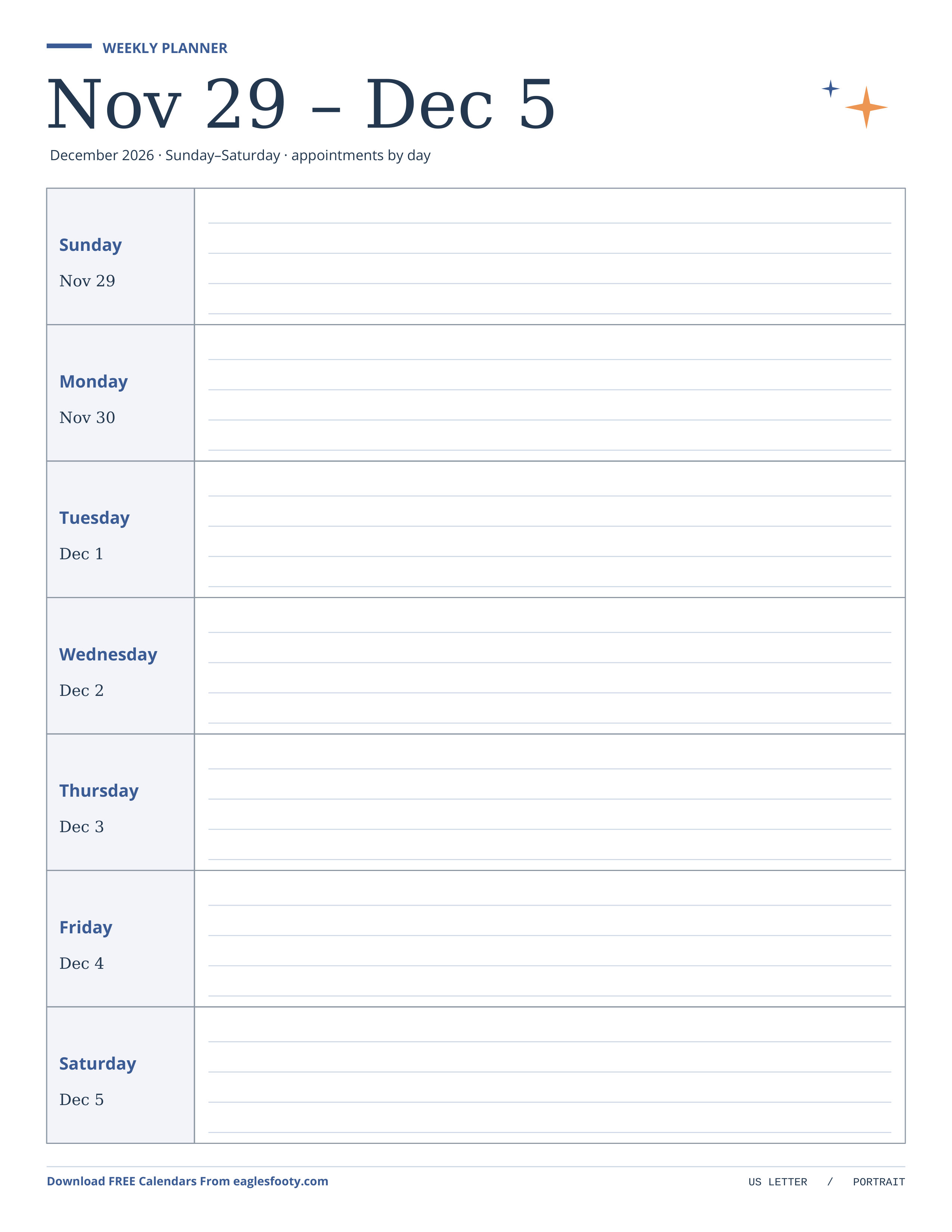
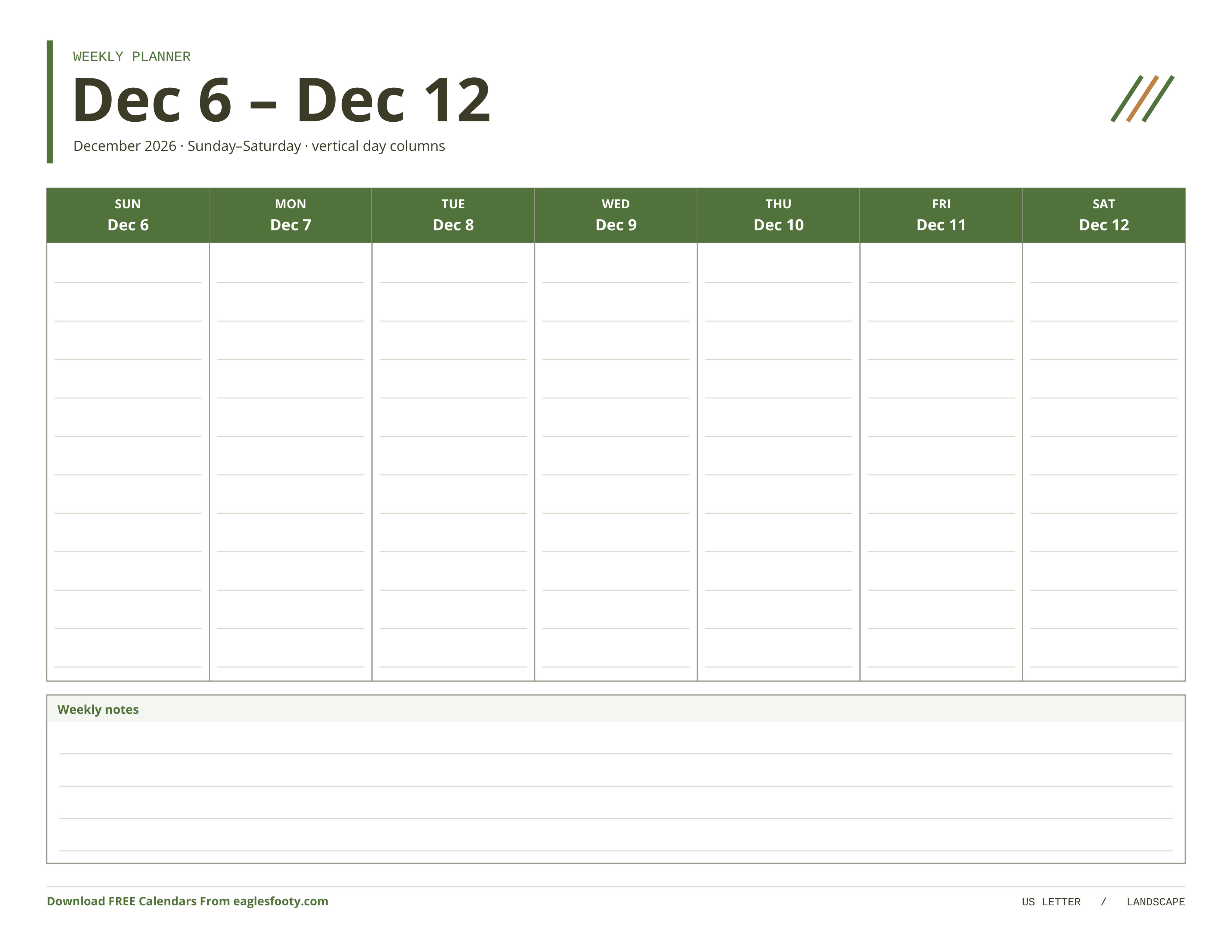
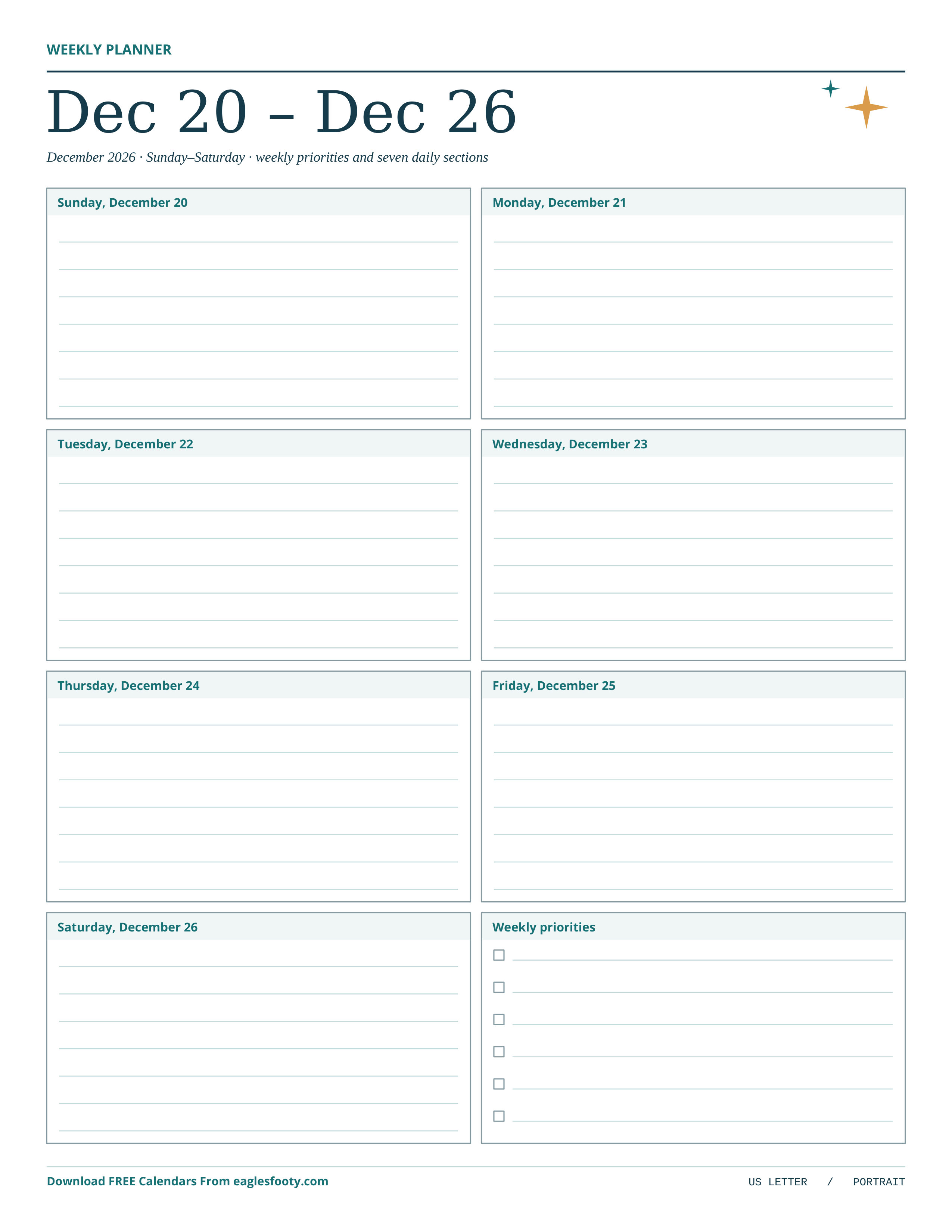
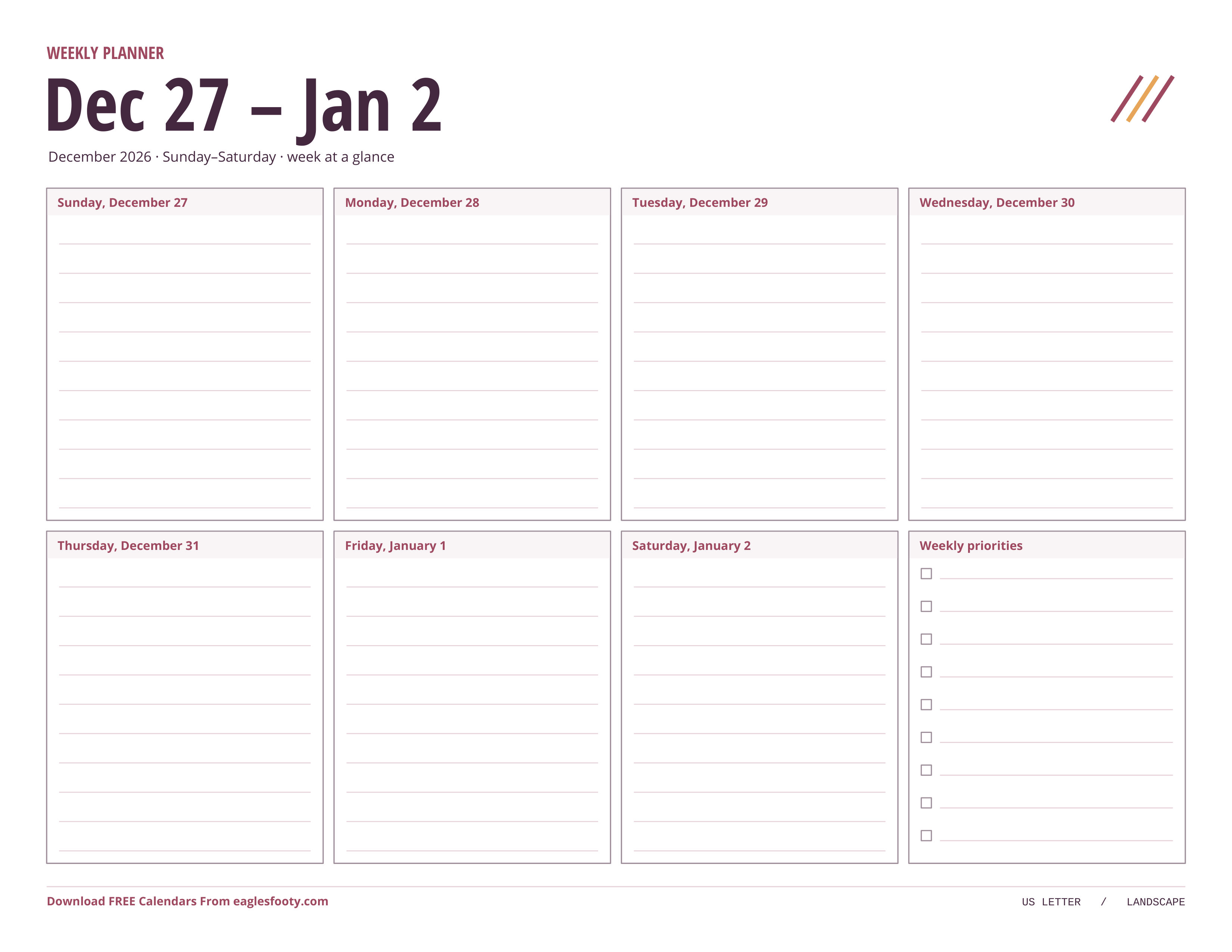
December 2026 Weekly Calendar Printable lets you work through the month in five smaller pieces. Download the packet to get every week in each layout, or choose an image for the sample shown. December 1 falls on Tuesday and December 31 on Thursday, so both the first and last week meet another month. Check the date range on each sheet before filling in a shift or appointment.
For a month view beside the weekly pages, see the December 2026 Calendar collection.
December 2026 Weekly Calendar Printable: Free Templates
How to Read a December 2026 Weekly Calendar Printable
When a week straddles two months, schedule by the weekday and date together. A shift that starts late on December 31 and finishes after midnight is a Thursday shift that ends on Friday, January 1. If you keep a separate January planner, add the finish time there as well. Each sheet runs Sunday through Saturday. The first starts November 29 and the last ends January 2. The table groups the December dates by those same weeks so you can locate each part of the month.
| Week | December Dates in That Week | Planning Example |
|---|---|---|
| Opening week | Tuesday 1–Saturday 5 | Add commitments carried over from November. |
| Second week | Sunday 6–Saturday 12 | Set a meeting and its preparation time. |
| Third week | Sunday 13–Saturday 19 | Check school notices and weekend rides. |
| Christmas week | Sunday 20–Saturday 26 | Confirm holiday coverage and travel. |
| Closing week | Sunday 27–Thursday 31 | Carry overnight plans into January. |
For appointments, consider the horizontal rows or the columns with a notes area. If you make a checklist at the start of each week, try the paired day boxes or the landscape sheet with an action list. The downloadable packet has 20 pages, with five weeks for each layout. Pick the layout first, then the date range.
A weekly sheet is most useful when a monthly date needs a sequence of actions. “Recital” fits on a wall calendar. For the week itself you may need an afternoon pickup, a rehearsal, dinner, and the performance. Give each item a time only when timing matters. The rest can sit in an unassigned list until you know who is driving and when the family will be home.
Set Up a Week You Can Actually Use
- Copy appointments and fixed commitments from your main calendar. Include the location if someone else may take over.
- Mark travel or setup time next to appointments that cannot start the instant you leave home.
- Assign one person to each shared responsibility, even if someone else is available as a backup.
- Add tasks with a flexible day last. Leave some room for anything that changes after printing.
For a worked example, suppose Tuesday, December 8 includes a 4:30 lesson and a 5:30 grocery pickup. Before putting both on the same person’s line, check how long the lesson runs and where the pickup is. A ten-minute overlap can be easy to miss in a monthly square. On a weekly sheet you can move the pickup, assign a second driver, or reserve a later window and record that decision in one place.
Use Short Entries That Another Person Can Read
- Write “Sam: pickup at west door, 3:10” when the door matters to the handoff.
- Enter a time range for a shift, including an AM or PM marker when the meaning could be ambiguous.
- Put a small open circle beside a commitment that still needs a reply.
- Keep one line available for a cancellation or a change of location.
If you work irregular hours, write the start and finish times before arranging the rest of the day. A morning after a late shift may look empty on paper even though it is already spoken for. Draw a bracket across the hours you want to keep free. You can use the same bracket for travel days, school field trips, or a morning when the only car is at the shop.
Decide Between One Copy and Several Copies
A household often needs one public copy for shared events and one private copy for details. Put the ride, the departure time, and the returning adult’s initials on the public sheet. Keep reservation codes, phone numbers, and personal appointment details elsewhere. That division makes a weekly printout convenient to leave by a door or share with a visiting caregiver.
At work, print one sheet for the public counter and write coverage changes directly on it. A supervisor can keep the more detailed plan with break coverage and handoffs. Give both pages the same week label and note when an update was made. If a colleague takes a photograph of an old version, the update date provides a quick way to recognize it.
Print Only the Week You Need
Open the packet in a viewer that shows page thumbnails. Select the desired week by its printed date range, then check the selected page in print preview. If you are using a JPG instead, open the downloaded original before printing. Choose a plain paper setting for a draft and confirm the edges remain visible. This prevents a large photo-print setting from cropping the date labels.
Close One Week Before Starting the Next
At the end of Saturday or when you close your working week, look for open circles, crossed-out plans, and anything left in the task area. A canceled appointment can disappear; an unfinished errand needs a new date or a deliberate decision to drop it. Transfer only the items that still matter. This keeps December 28 from becoming a pile of reminders that were relevant only before Christmas.
For the last page, write down what happens after December 31 even if your December project technically ends that night. A borrowed key may be due back in January, a guest might need a return ride, and an overnight shift still has a finish time. Make the January entry while the details are in front of you. Then file or recycle the completed week so the current plan stays visible.