December 2026 and January 2027 Calendar Excel worksheets keep the last weeks of one year beside the first weeks of the next in a single downloadable workbook. Open the December and January tabs to enter appointments under their dates. A third tab, Handoffs, records tasks that start on one date and finish on another. It calculates elapsed calendar days from the two dates you enter, including when they fall in different years.
For people following the plan on paper, a separate month view is available in the December 2026 Calendar collection.
December 2026 and January 2027 Calendar Excel for Planning
What Is in the December 2026 and January 2027 Calendar Excel Workbook?
| Worksheet | Dates or fields | Use it for |
|---|---|---|
| Dec 2026 | Tuesday, December 1 through Thursday, December 31 | December appointments and final deliveries |
| Jan 2027 | Friday, January 1 through Sunday, January 31 | January starts, returns, and follow-ups |
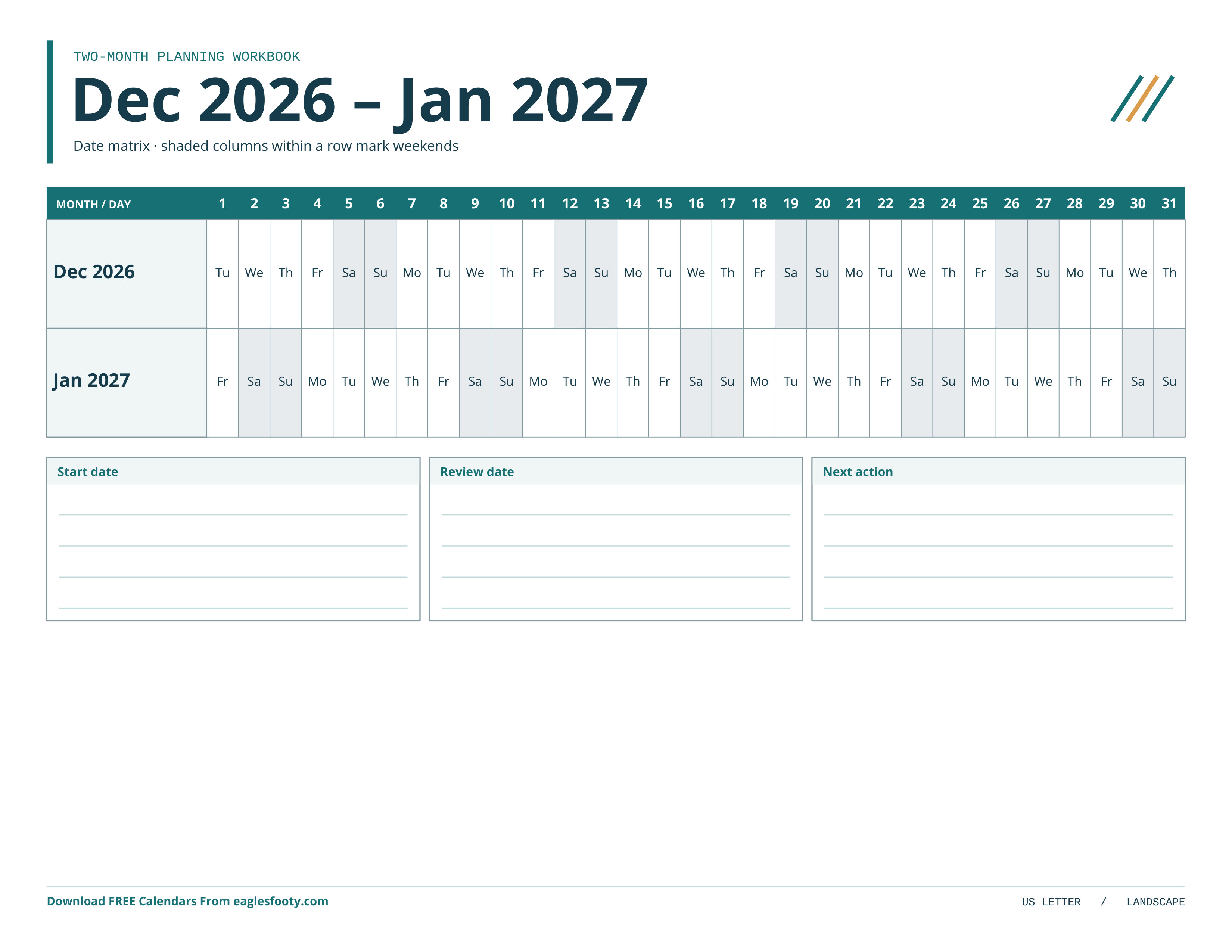
| Handoffs | Start date, due date, owner, status, and next action | Work that needs continuity across the new year |
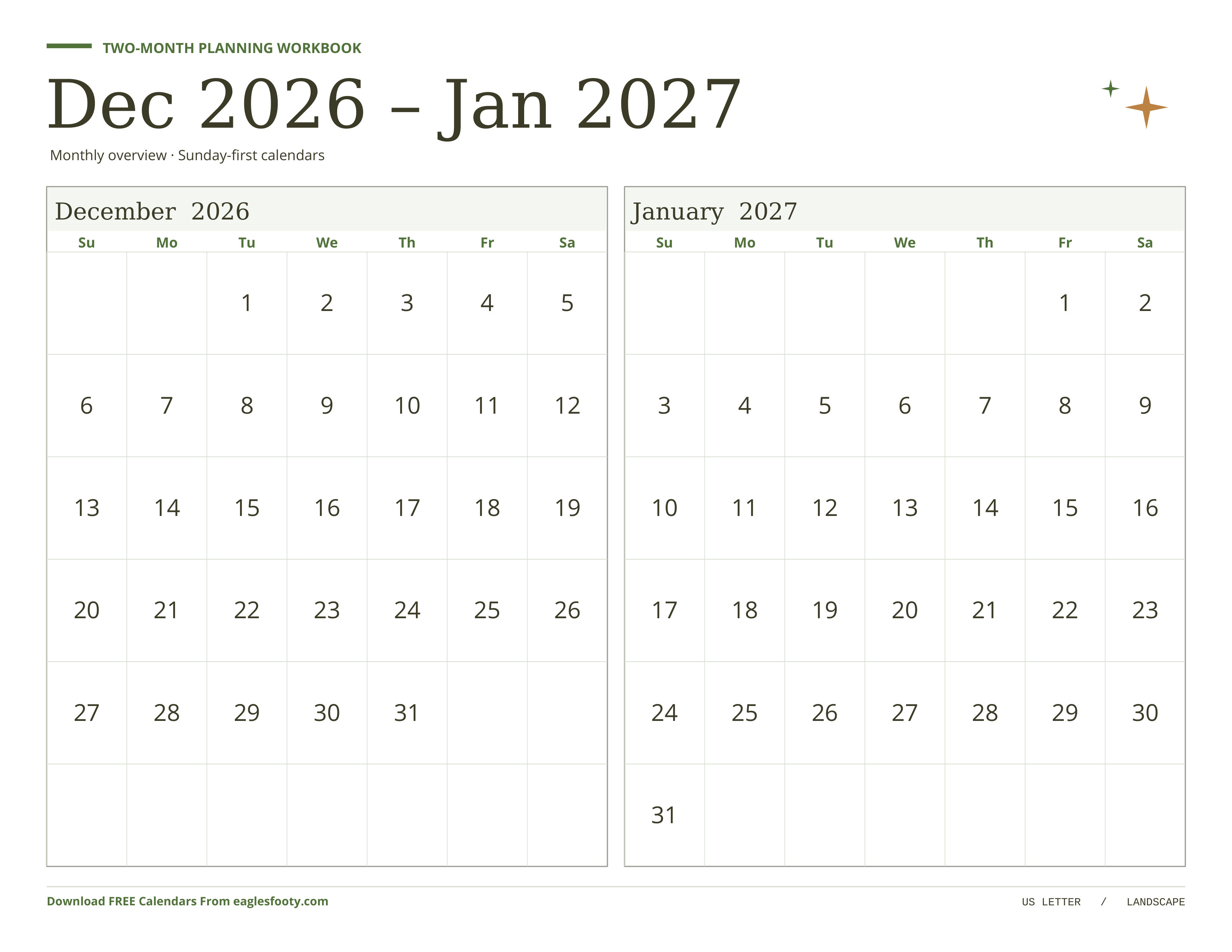
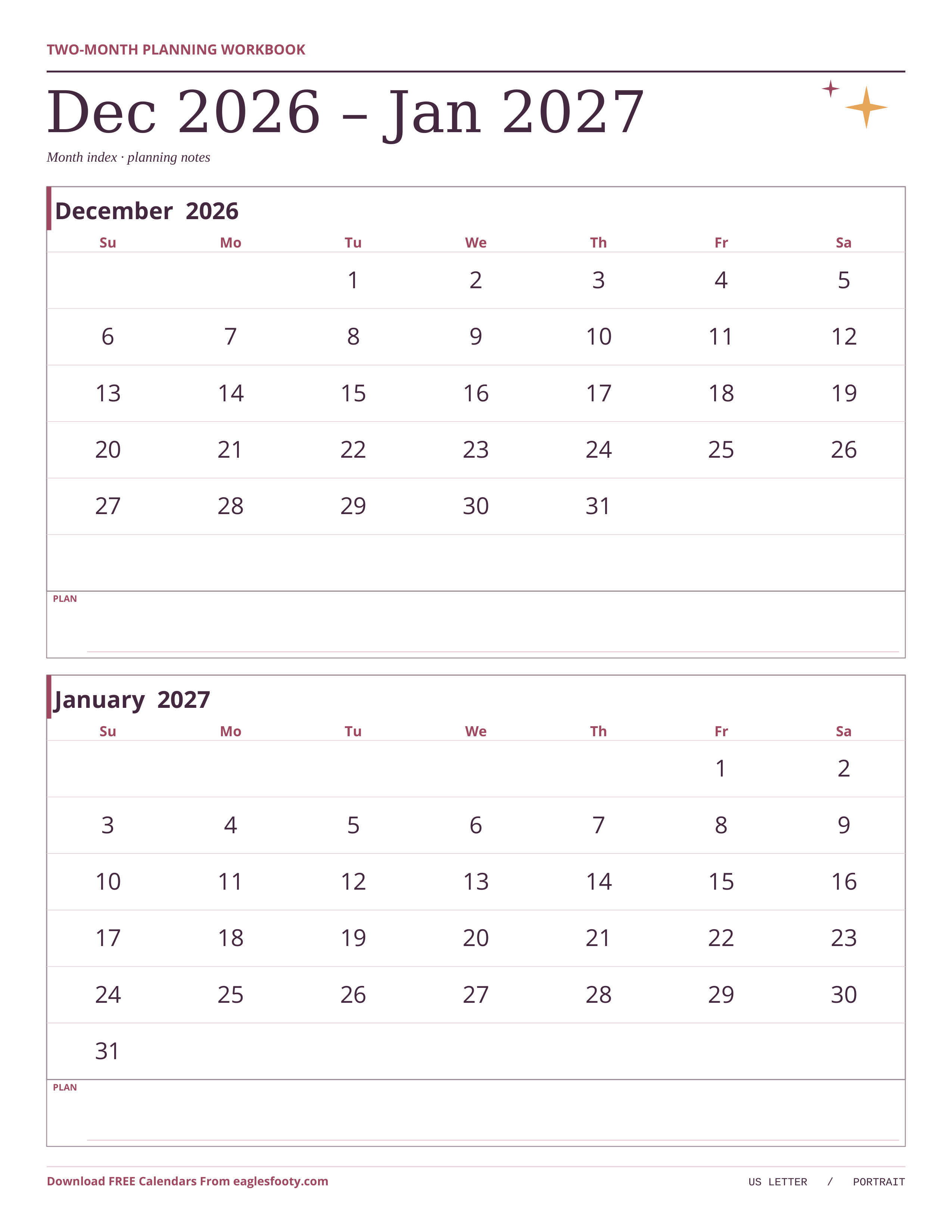
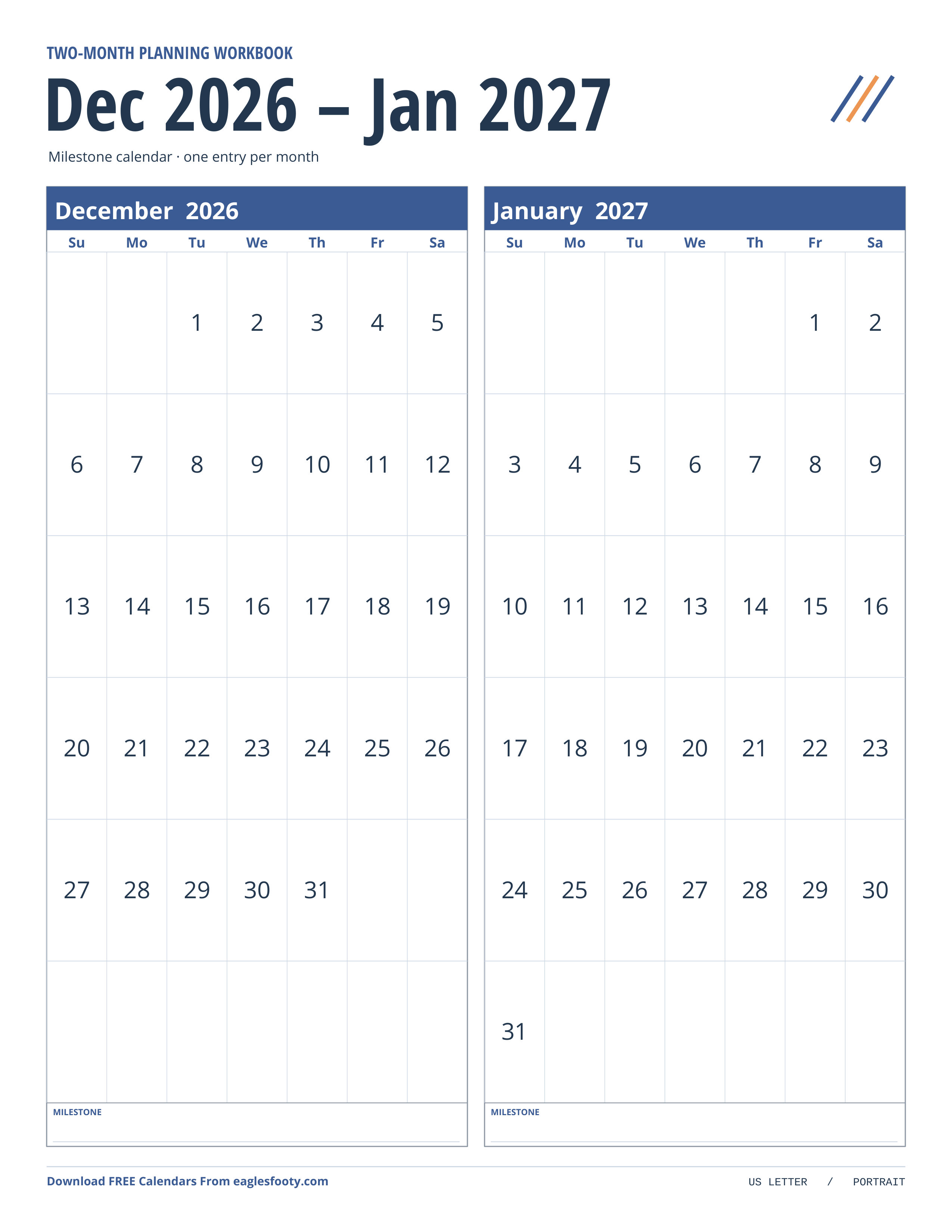
Each month has a Sunday-first grid. The first of January sits in the Friday column because it follows Thursday, December 31. January needs a final row for Sunday the thirty-first, so check the bottom of the January sheet before signing off on a printed schedule. Empty boxes before the first day and after the last day are shaded. They give the weeks their shape and help keep appointments on the correct month’s tab.
Enter Calendar Dates and Schedule Text
The numbers at the top of the day boxes are real Excel dates. Leave them in place and type event names in the white cells beneath them. If a Friday has two appointments, enter both in the same writing area and use a line break if your editor supports it. Changing a cell’s typeface or text color keeps the entry editable. You can give all pickup appointments the same short prefix if several people share the sheet.
The Handoffs worksheet serves a different purpose. Enter a full start date and a full due date for each row. For example, use December 29, 2026 and January 4, 2027, then look at Elapsed days. The result is six because the formula subtracts the start date from the due date. If you count both marked squares on a wall calendar you will see seven dates. That distinction matters when you describe how long someone has held an item.
Track a Job Across New Year
- Give the task a name that both teams recognize, such as “return borrowed projector.”
- Enter the person who has responsibility now, along with the December start date and the January due date.
- Put the physical next step in the final column. “Leave case with reception” says more than “follow up.”
- Mark the appointments on the individual monthly grids if the people reading them need those reminders.
The month grids and the handoff list accept independent entries. Changing a due date in Handoffs recalculates elapsed days in that row. To move a reminder printed on the January calendar, edit that calendar entry as well. This structure lets a team keep internal notes on the tracker and share a clean monthly schedule with volunteers. A budget discussion or the name of a backup contact can stay in the working file while the printed calendar shows just a return time.
Read the Elapsed Days Column
Leaving either date empty leaves the calculation blank. An item started and finished on the same day returns zero. A negative result means the due date precedes the start date and is a reason to review the entries. The formula includes weekends and holidays. If you have a deadline defined by an organization’s opening days, use its actual published schedule to pick a due date before entering it in the workbook.
- Sort or filter the handoff table by owner to prepare for a change of shift.
- Enter four digits for the year whenever a date crosses January 1.
- Keep the formula cells in the Elapsed days column when clearing last week’s sample entries.
- Add the time zone to an appointment description when a colleague in another location will use it.
Print One Tab of the December 2026 and January 2027 Calendar Excel Workbook
For a two-page wall display, select the December and January sheets in your spreadsheet application’s print settings, then look through the preview. Each month has its own print area. A selected range left over from a previous print job may capture only a few boxes. If the preview includes the tracker, change the sheet selection before printing copies for people who only need the dates. People using separate desks can also print a single month and keep the other one on screen.
To hand the workbook to a new coordinator, complete the last action for each unfinished December task. Compare the January calendar with the due dates that remain open. A line reading “January 5 · prepare report” is more helpful when the corresponding handoff gives the owner’s name and says which December records to collect. If a task ends in December and needs no follow-up, closing its status on the tracker preserves that history without adding an unnecessary January entry.
Make a New Working Copy
Save an untouched workbook before you circulate an edited version. For a small team, keep the working copy in one shared location and put the print date on any PDF you export. A printed month can be right when it goes up and out of date a day later. When a deadline moves, the person changing it can update the tracker, replace the posted page, and tell the person responsible for the new date in the same conversation.