December 2026 Calendar PDF pages are ready to print from a single file. Download the PDF, open its page previews, and select the calendar you want before sending it to the printer. Each version covers Tuesday, December 1 through Thursday, December 31. The individual image downloads are handy when you want to use one layout in a personal note or insert it into another document.
Another ready-to-print monthly reference is available in the December 2026 Calendar collection.
December 2026 Calendar PDF for Monthly Planning
How to Print One December 2026 Calendar PDF Page
- Save the PDF to your device and open the saved file in a viewer that shows thumbnails or page previews.
- Select a layout and note its page number. In the print dialog, choose the current page or enter that number in the page range.
- Select the paper actually loaded in the printer and check the preview orientation.
- Print one copy. Confirm that the corner dates and the bottom of the calendar are visible before increasing the quantity.
A print command from the article itself can include the surrounding website, navigation, and captions. Use the visible PDF download when your goal is a clean paper calendar. If the file opens in a new viewer, look for that viewer’s print command. Checking the preview is an easy way to recognize the difference: a calendar print should show the artwork by itself on the selected page.
Fit the Entire Design on US Letter Paper
Choose US Letter when you have loaded 8.5-by-11-inch sheets. A portrait design has its long dimension running up and down; a landscape design has its long dimension running across the page. Allow automatic rotation if the preview shows a sideways or needlessly shrunken calendar. When you print a mixed selection, check each chosen page in the preview, because its orientation can differ from the preceding one.
| What You See | Adjustment to Try | What to Check Next |
|---|---|---|
| Part of the border is missing | Fit the page inside the printable area | All four edges appear in preview. |
| A landscape calendar looks tiny | Allow the printer to rotate the page | The longer edges now align. |
| Two calendars share one piece of paper | Change pages per sheet to one | Date squares are large enough to write in. |
| Several layouts appear in the job | Change the page range | Only the selected design remains. |
Choose Paper for the Way You Will Use the Calendar
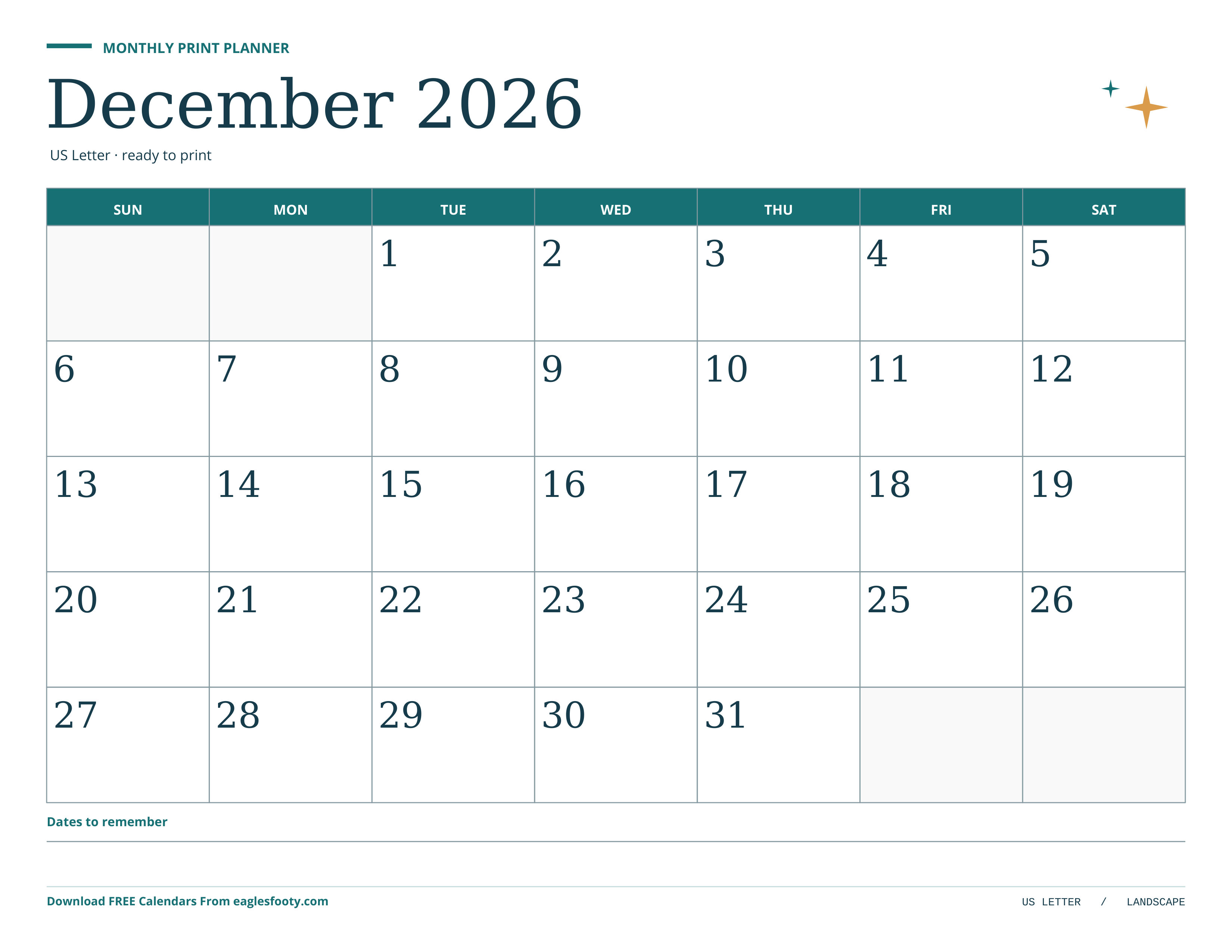
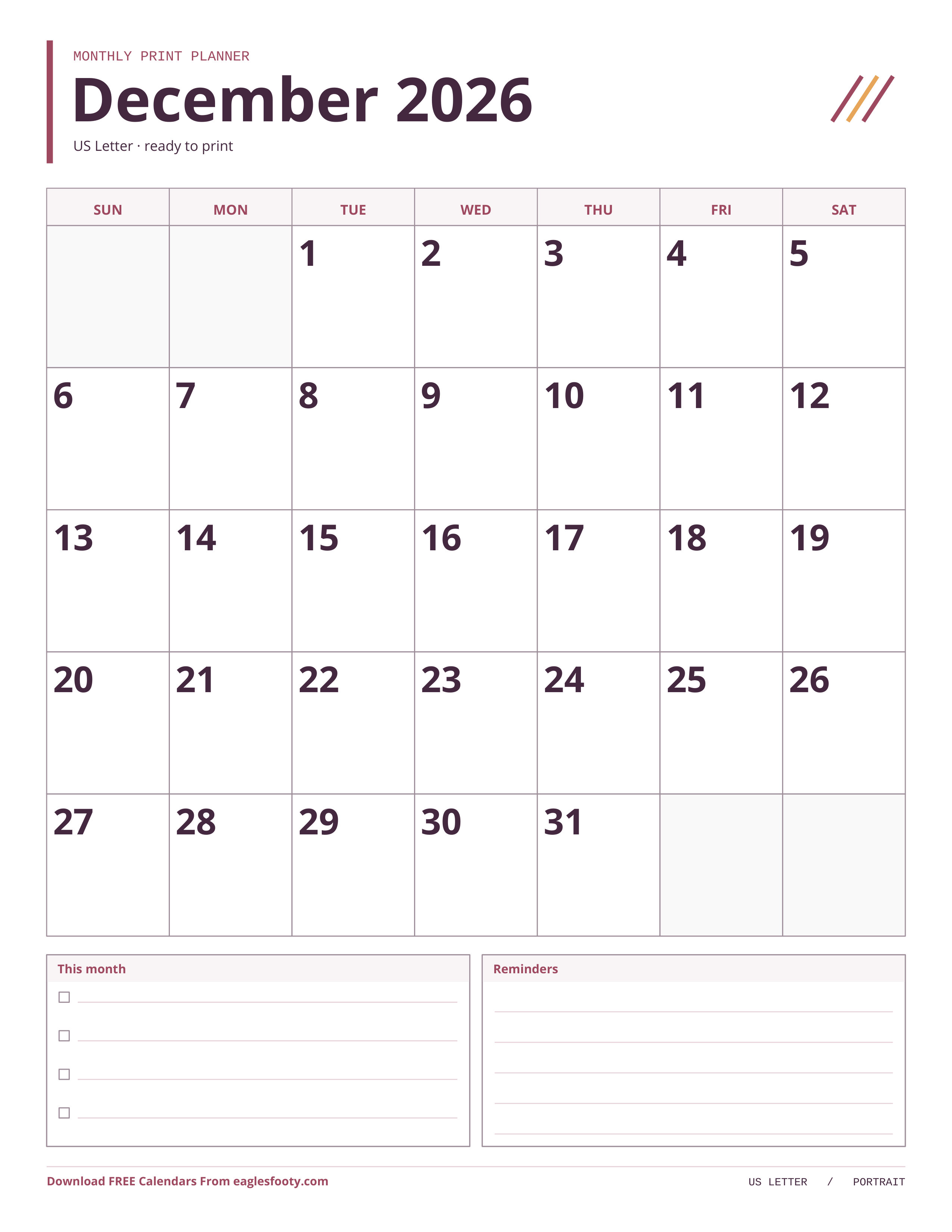
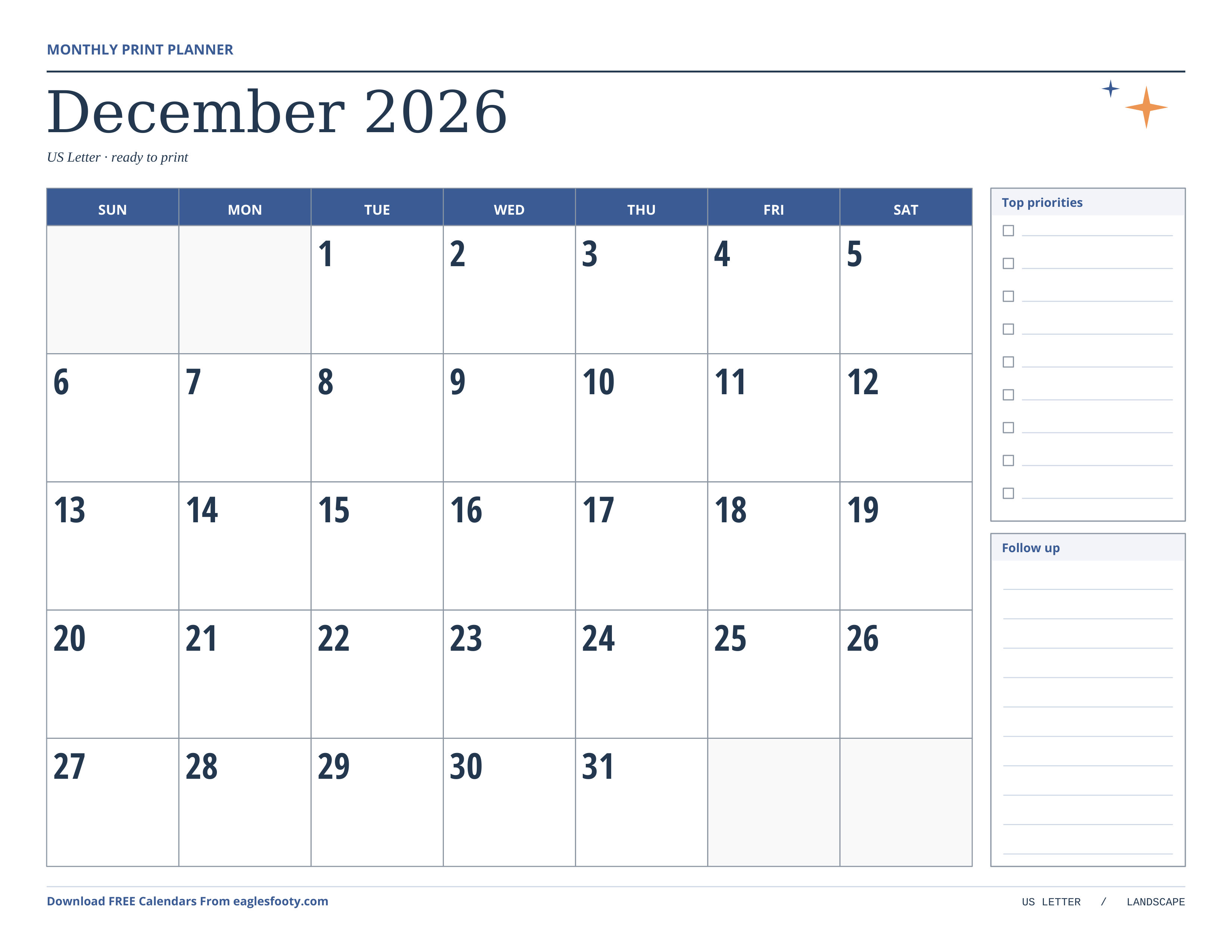
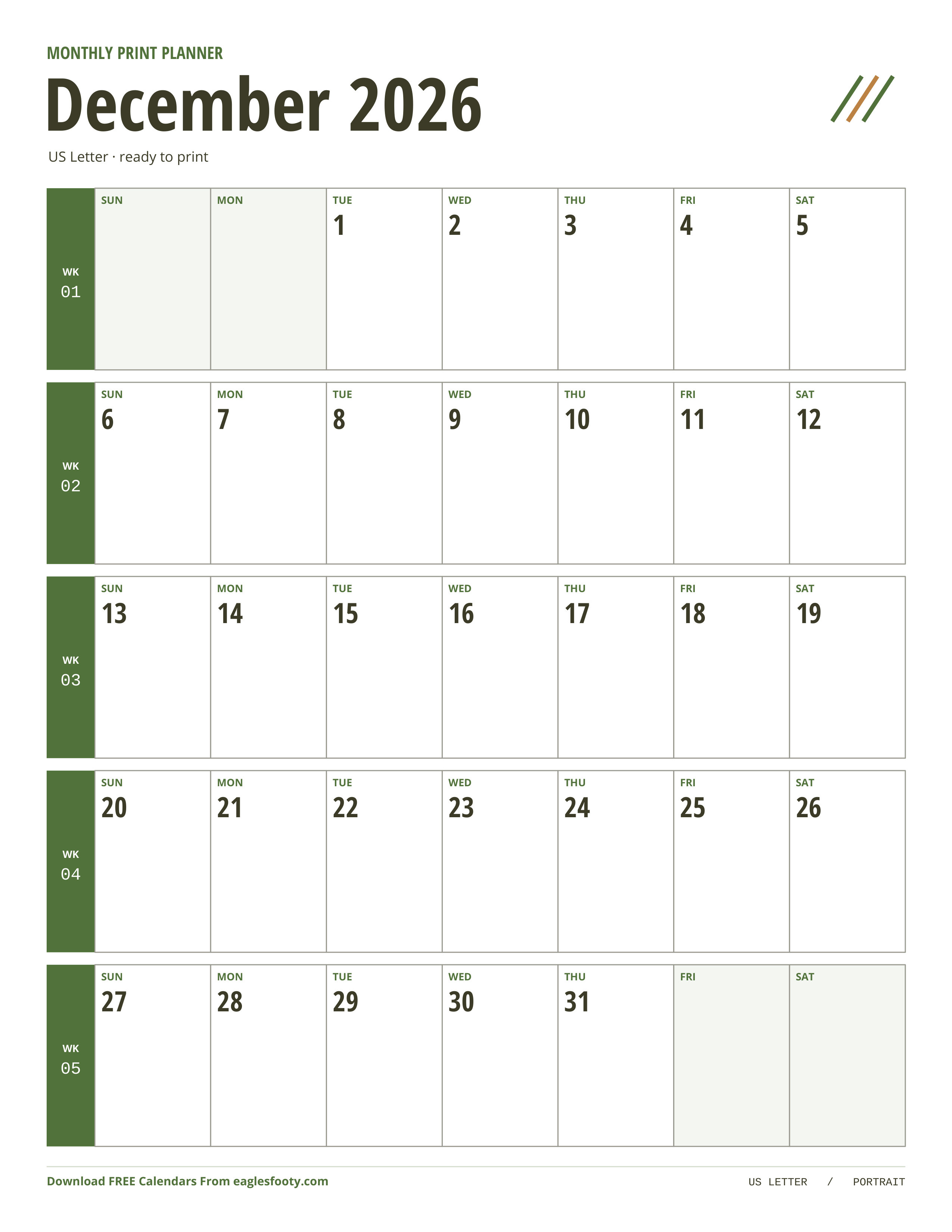
The open serif grid keeps the dates prominent for a wall display. Choose the portrait version if you want two ruled planning boxes beneath the month. The priorities layout separates a main job from its follow-up, while the banded layout keeps each week visually distinct. Check the page thumbnails against those features when selecting a single page to print.
A page carried in a binder should turn easily and accept your usual pen. A sheet on a bakery counter may be more useful inside a clear sleeve that protects it from flour. For a break room, ordinary office paper is often the easiest material to replace when staffing changes. Start with a small trial rather than printing the supply for the whole month at once.
If you use color to distinguish departments or family members, test that system on the printed page. Some light colors are difficult to tell apart in a hallway. Add an initial or a simple symbol beside entries so the calendar remains readable in grayscale. Keeping the PDF means you can replace a crowded sheet without recreating its date grid or guessing which weekday starts the month.
Choose the Right Number of Copies
- One shared copy works when everyone visits the same board and one person records changes.
- Two copies make sense when the kitchen and entryway serve different readers. Label each location clearly.
- A desk copy can carry private notes, while a public copy lists only shift times or shared events.
- A spare unmarked page is useful when several appointments are waiting for confirmation.
Make the Printed Month Easy to Maintain
Write a short title for the purpose of the print, such as “Studio bookings” or “After-school rides.” A sheet named for its job is easier to update than a page on which everything belongs. Put the entries with fixed dates on first. After that, add flexible reminders in pencil, leaving enough room to cross out one time and write a new one legibly.
For example, a workshop might reserve Saturday, December 12 for a morning class and Saturday, December 19 for equipment maintenance. Write the exact start time for the class if members need to arrive together. For maintenance, “closed until noon” is more helpful to a visitor than “service.” The same printable can serve both audiences if each entry describes what the reader needs to do.
Save a Clean Original and a Working Copy
If your PDF viewer supports annotations, duplicate the download before adding marks you intend to save. Name one copy as the untouched calendar and give the annotated version a purpose and revision date. Keep the same naming convention for a shared file. This makes it possible to tell which version someone printed even when both have the same month heading.
When sharing paper copies, mark a small revision date in a margin after changing an important entry. A photograph on someone’s phone may outlive the page on the wall. For a corrected shift time or a new pickup arrangement, contact the affected person as well as changing the sheet. At the end of the month, keep the final marked copy if it records information you will need again, and keep the original PDF for any clean reprints.